By Abdi • February 14, 2026
Intro
If you are new to Systeme.io, even something simple like logging in can feel confusing the first time. Maybe you created your free account a few days ago, but now you cannot find the login page, or you are not sure which link to use to get back to your dashboard.
Disclosure: This post contains affiliate links. If you sign up for Systeme.io account through my link, I may earn a small commission at no extra cost to you. I only recommend tools I personally use or truly believe can help side hustlers grow faster.
In this guide, I will show you exactly how the Systeme.io login for beginners: how to find the right login page, enter your details safely, fix common login problems, and go straight to the dashboard where you can build funnels, landing pages, and email campaigns. By the end, logging into Systeme.io will feel easy and automatic.
Ready to follow along? Click here to create your free Systeme.io account and then come back to this guide.
What is the Systeme.io account login page and why it matters
The Systeme.io account login page is the door to your whole online business inside the platform. After you log in, you can see your funnels, emails, contacts, courses, and more in one place.
If you lose the login link or have trouble signing in, you might think there is something wrong with your account, when really you just need a simple, clear process. That is why it is worth taking two minutes now to understand how the Systeme.io login works and how to save it for later.
Step 1 – Go to the official Systeme.io login page
Use the main website, not random links
To keep your account safe, always start from the official Systeme.io website or your own saved bookmark, not from random links in comments or messages.
- Open your browser.
- Type
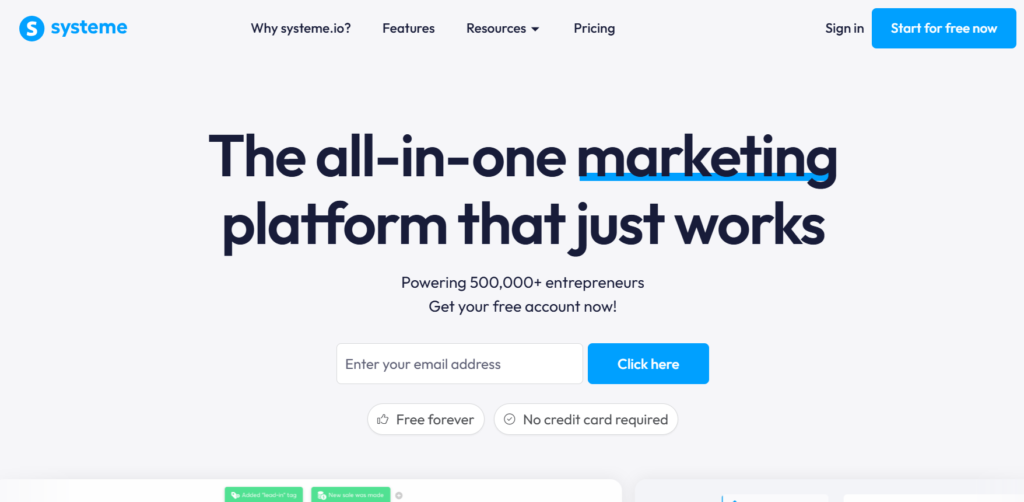
systeme.ioin the address bar and press Enter. - On the homepage, look for the “Sign in” button in the top‑right corner and click it.
This will take you to the official Systeme.io login page where you can safely enter your email and password.
Image 1 placement
Step 2 – Enter your email and password correctly
Make sure you use the same email you signed up with
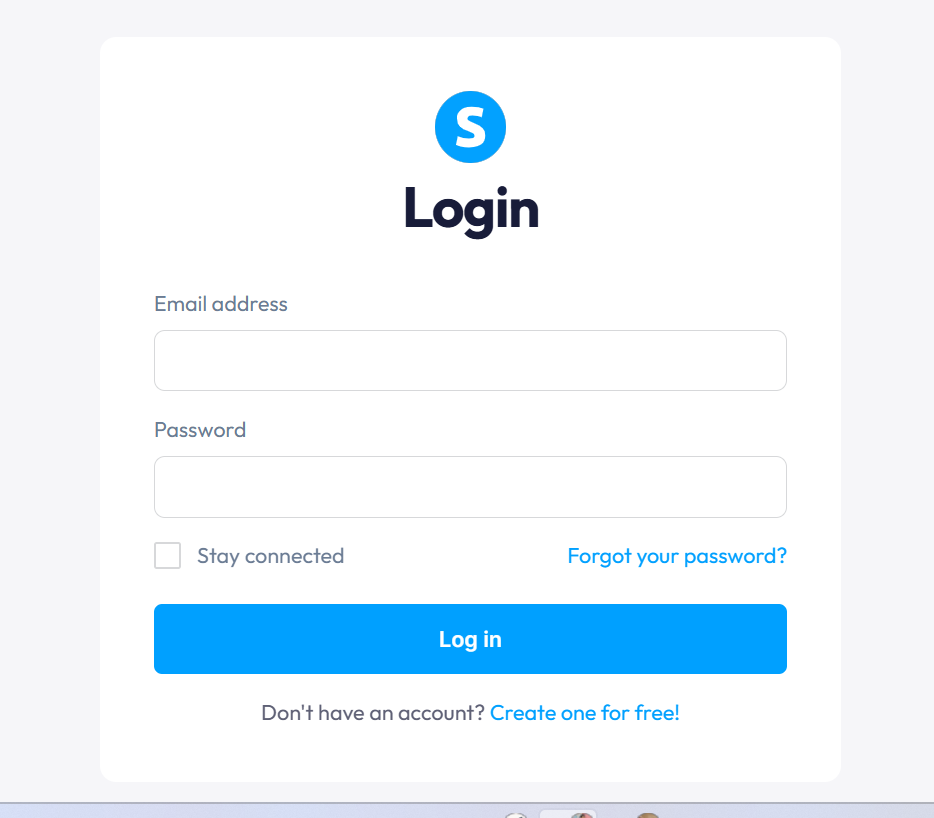
On the Systeme.io login page, you will see two main fields: Email and Password.
- In the Email field, type the same email address you used when you first created your Systeme.io account.
- In the Password field, type your password carefully, paying attention to capital letters and symbols.
If you copied your password from a password manager, double‑check there is no extra space at the end when you paste it.
Decide if you want to “Stay connected”
You will also see a small checkbox like “Stay connected” or “Remember me”.
- If you are on your personal computer or phone, you can check this to stay logged in.
- If you are on a shared or public computer, leave it unchecked for security.
When you are ready, click the “Login” or “Sign in” button to continue.
Step 3 – Verify your account if Systeme.io asks
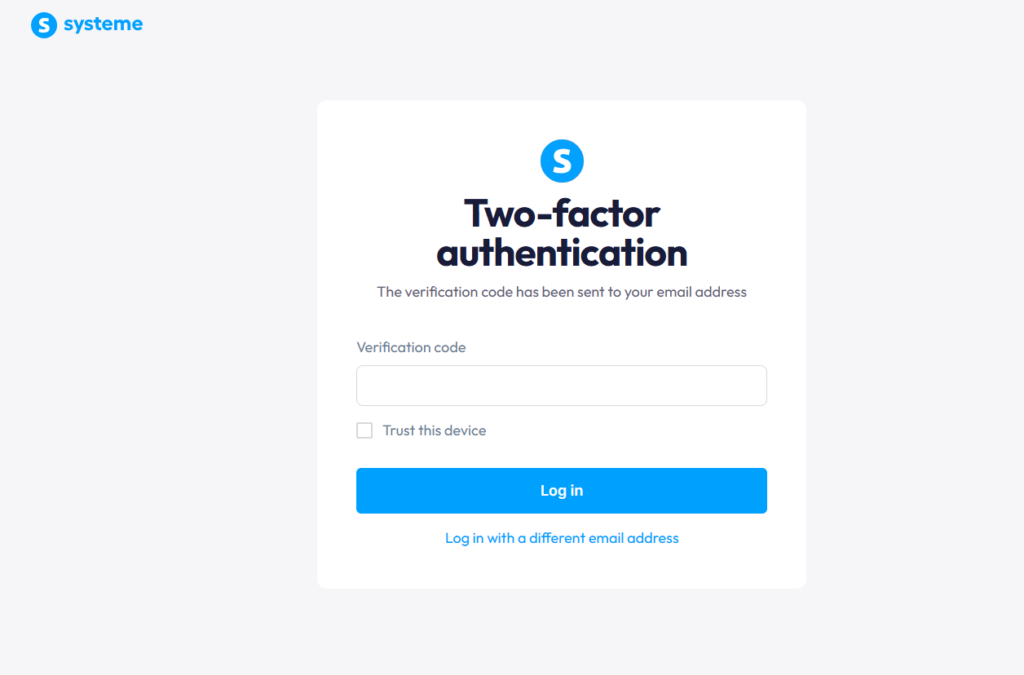
Sometimes, Systeme.io will ask you to confirm a verification code the first time you log in from a new device.
- Check your email inbox (the same address you used to sign up).
- Look for a message from Systeme.io with a short code.
- Enter that code into the verification field on the login page.
This extra step protects your account from unauthorized access and makes sure only you can log in.
Step 4 – Reach your Systeme.io dashboard after login
When your email, password, and any verification steps are correct, Systeme.io takes you to your main dashboard. This is your control center.
On the dashboard, you will see:
- A top menu with items like Funnels, Emails, Contacts, Blogs, and more.
- Summary boxes showing your leads, sales, or recent activity.
- Quick buttons to create a new funnel or send a broadcast email.
This is where the real work happens—once you have a smooth Systeme.io login habit, getting back to this dashboard becomes fast and stress‑free.
If you still do not have an account, you can create a free Systeme.io account blow button and start testing the dashboard today.
Image 4 placement
- Place after the bullet list above.
- File name:
systeme-io-dashboard-after-login.png - Alt text:
Systeme.io dashboard view after a successful login
H2: Step 5 – Save your Systeme.io login for next time
Bookmark the login page in your browser
To avoid searching for the login link every time, create a bookmark or shortcut:
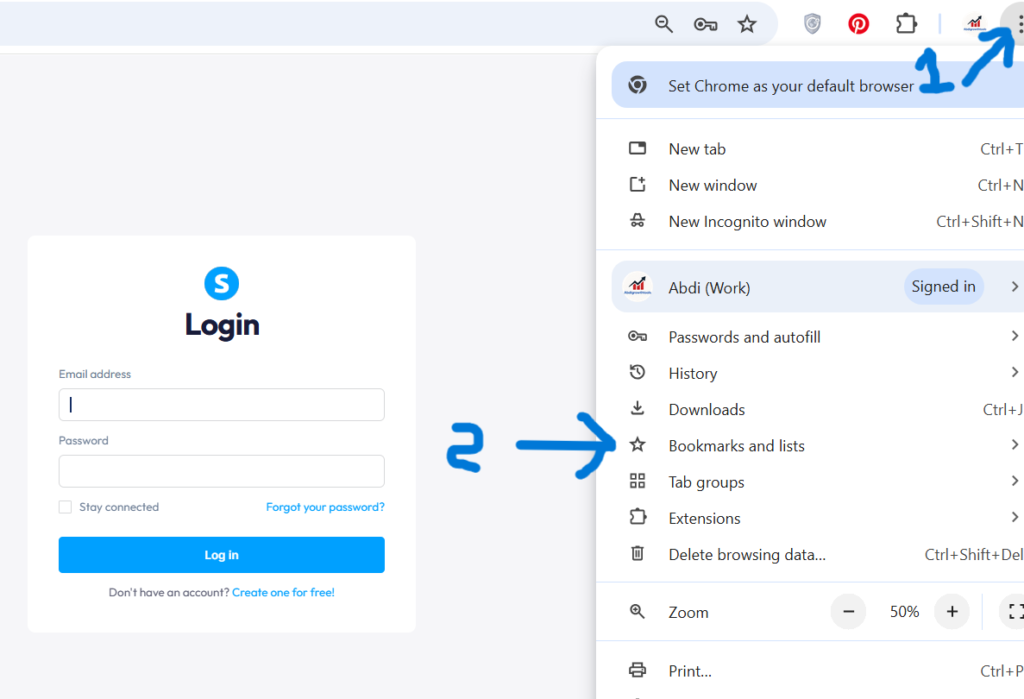
- When you are on the login page (
https://systeme.io/loginor your region’s version), click the star icon in your browser to bookmark it. - Name it something clear like “Systeme.io Login”.
- Place it in your bookmarks bar so you can open it with one click.
Next time, you just click the bookmark and sign in.
Use a password manager (optional but helpful)
If you use a password manager (like Chrome’s built‑in manager or a separate app), let it save your Systeme.io password.
- This reduces mistakes when typing long passwords.
- It makes your login faster without writing passwords on paper or notes.
Just be sure your password manager is protected with a strong master password or device lock.
How to fix common Systeme.io login problems
Even with the right steps, sometimes login issues happen. Here are the most common problems beginners face and simple ways to fix them.
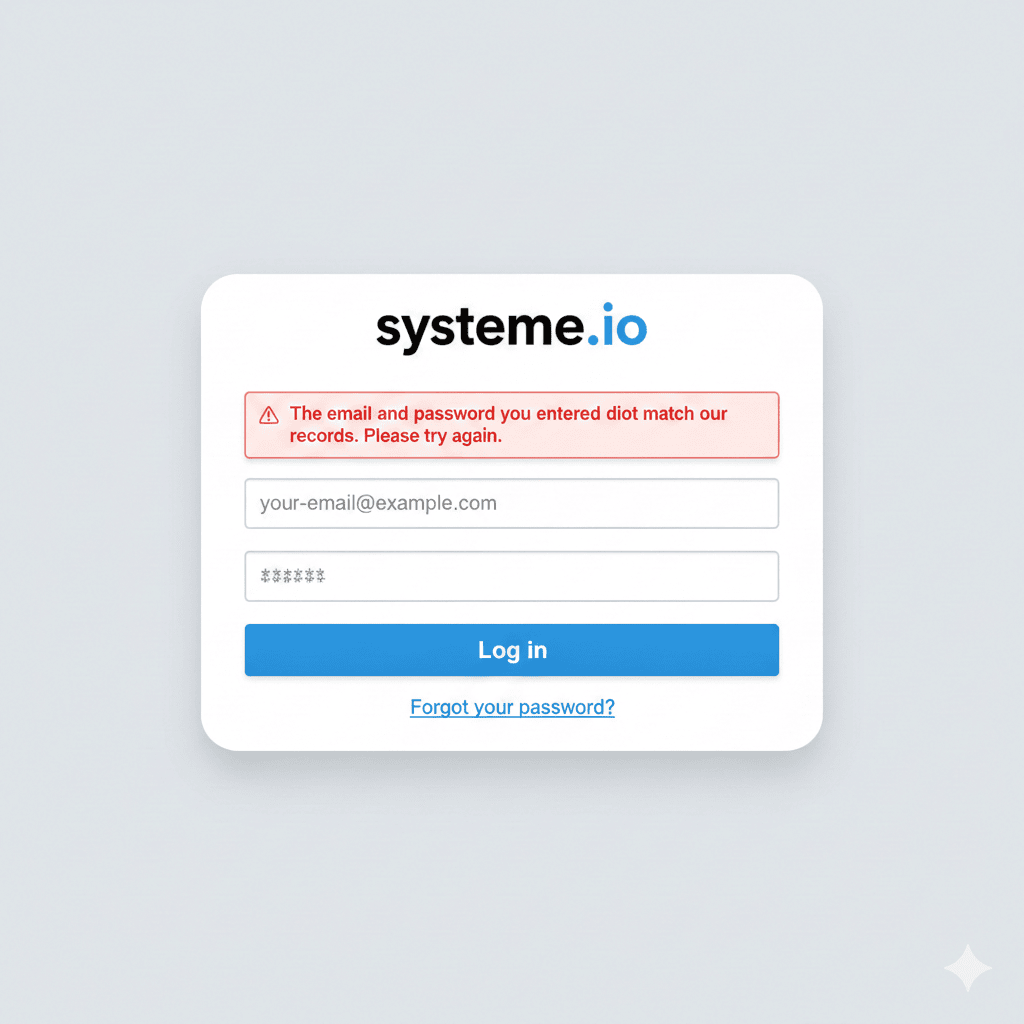
Invalid email or password” message
If you see an error saying your email or password is wrong:
- Check for extra spaces before or after your email or password.
- Make sure caps lock is not turned on.
- Confirm you are using the same email address that received your Systeme.io welcome email.
If you still cannot log in, click the “Forgot password?” link on the login page.
Resetting your Systeme.io password
To reset your password:
- Click “Forgot password?” on the login page.
- Enter your email address.
- Check your inbox for a password reset email from Systeme.io.
- Click the link inside and choose a new password.
Then return to the login page and try again with your new password.
Not receiving the verification or reset email
If you do not see the verification code or reset email:
- Check your spam or promotions folder.
- Search your inbox for “Systeme.io”.
- Wait a few minutes and refresh your email.
If nothing arrives after some time, you may have used a different email during signup, or there may be an email provider delay. Trying with another email account can help.
Systeme.io login for course students and members
If you are selling online courses or memberships with Systeme.io, your students will also need to log in to access their content.
There are two main login situations:
- Your own login: you use the regular Systeme.io login page to manage funnels and emails.
- Customer login: your students log in through a course or membership login page that you can brand with your own domain.
You can customize that customer login page in your Settings → Custom domains → Edit login page inside Systeme.io.
Systeme.io login safety tips for side hustlers
To keep your account safe while still making login easy, follow a few simple practices:
- Use a strong password with a mix of letters, numbers, and symbols.
- Avoid logging in from public computers unless absolutely necessary.
- Always log out if you use a shared device.
- Do not click on strange emails that pretend to be Systeme.io but use weird addresses or ask for your password directly.
These small habits protect your funnels, email list, and any customer data you store inside Systeme.io.
Final thoughts – make Systeme.io login part of your daily routine
Once you understand the Systeme.io login process, it goes from “Where is the login page?” to “I can reach my dashboard in seconds.” That is important, because the more often you log in and check your funnels, emails, and stats, the faster you can improve your side hustle.
If you have not created your free Systeme.io account yet, this is the perfect time to start. Set up your login, access the dashboard, and then follow my other tutorials to build landing pages, email sequences, and funnels that can finally bring in your first affiliate commissions.
Click here to create your free Systeme.io account, set up your login, and start building your first funnel this week.
Related post
How to Build a Free Landing Page With Systeme.io for Your Side Hustle (No Code)
Why Systeme.io is the Secret Weapon for Side Hustlers in 2026 (Free & Easy)
Leave a Reply